


Adobe Illustrator is a powerful tool for artists and designers, offering a wide range of features to create stunning vector artwork. One of the most versatile and creative tools within Illustrator is the Paintbrush Tool. This comprehensive tutorial will guide you through the intricacies of using the Paintbrush Tool, including brush strokes, brushes library, variable width profile settings, and tips for achieving the best brush results.
The Paintbrush Tool in Adobe Illustrator is a versatile feature that allows artists to create freeform paths and apply various brush strokes to these paths. It is an essential tool for adding artistic flair and unique styles to your vector artwork.
To access the Paintbrush Tool, follow these steps:
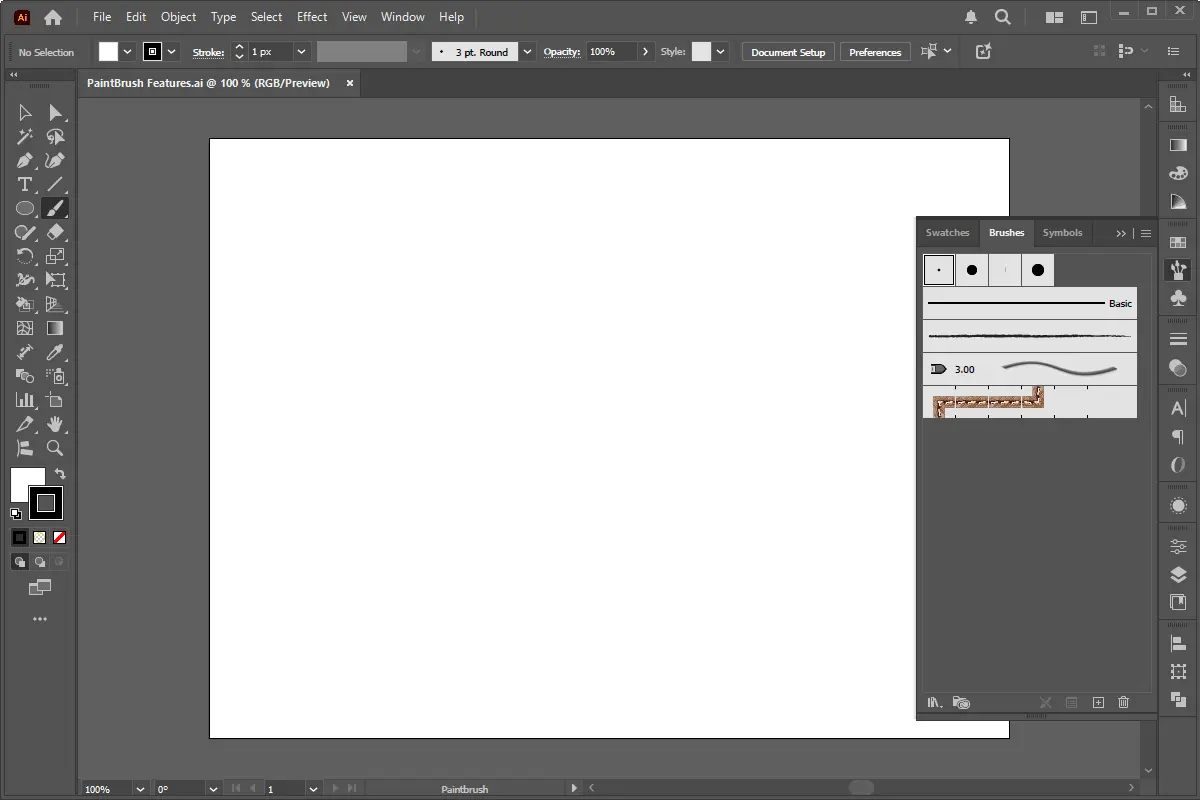
Brush strokes in Adobe Illustrator are essentially paths that have been modified by a brush. These brushes can be customized to create different effects, such as calligraphic, scatter, art, and pattern brushes.
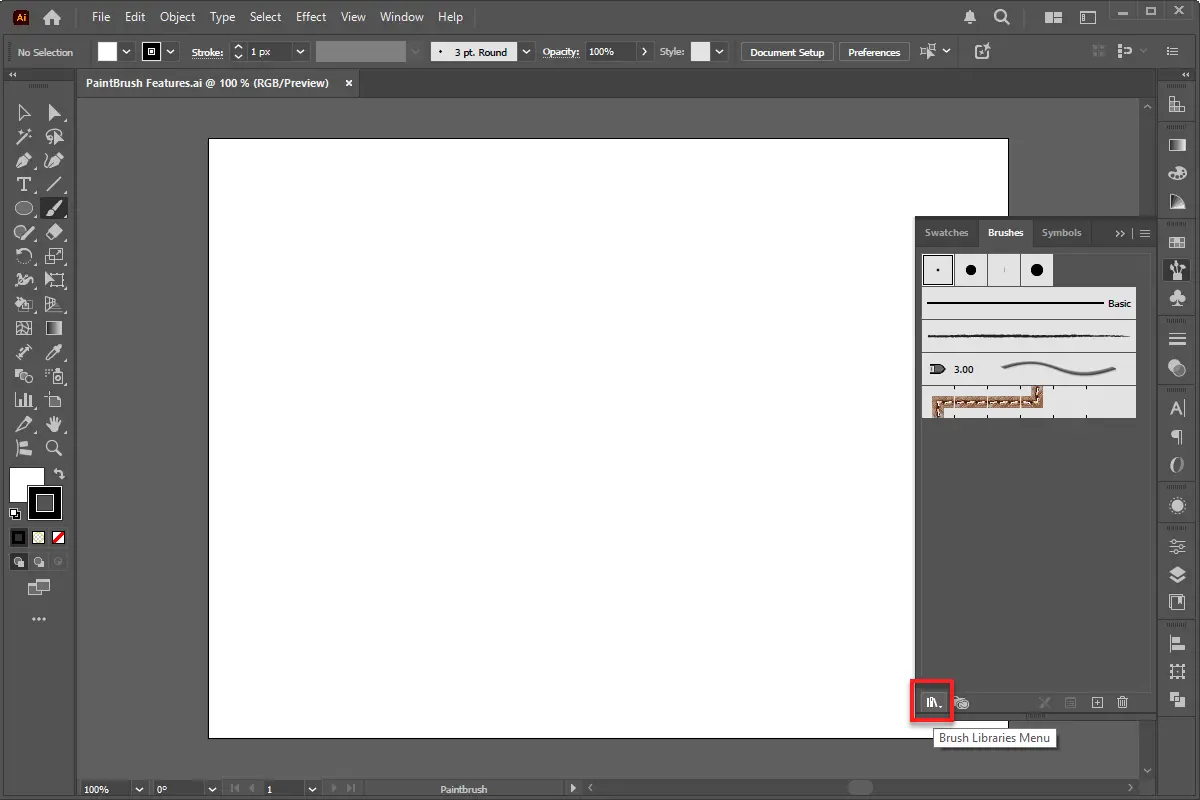
Adobe Illustrator comes with a rich library of pre-designed brushes that you can use to enhance your artwork.
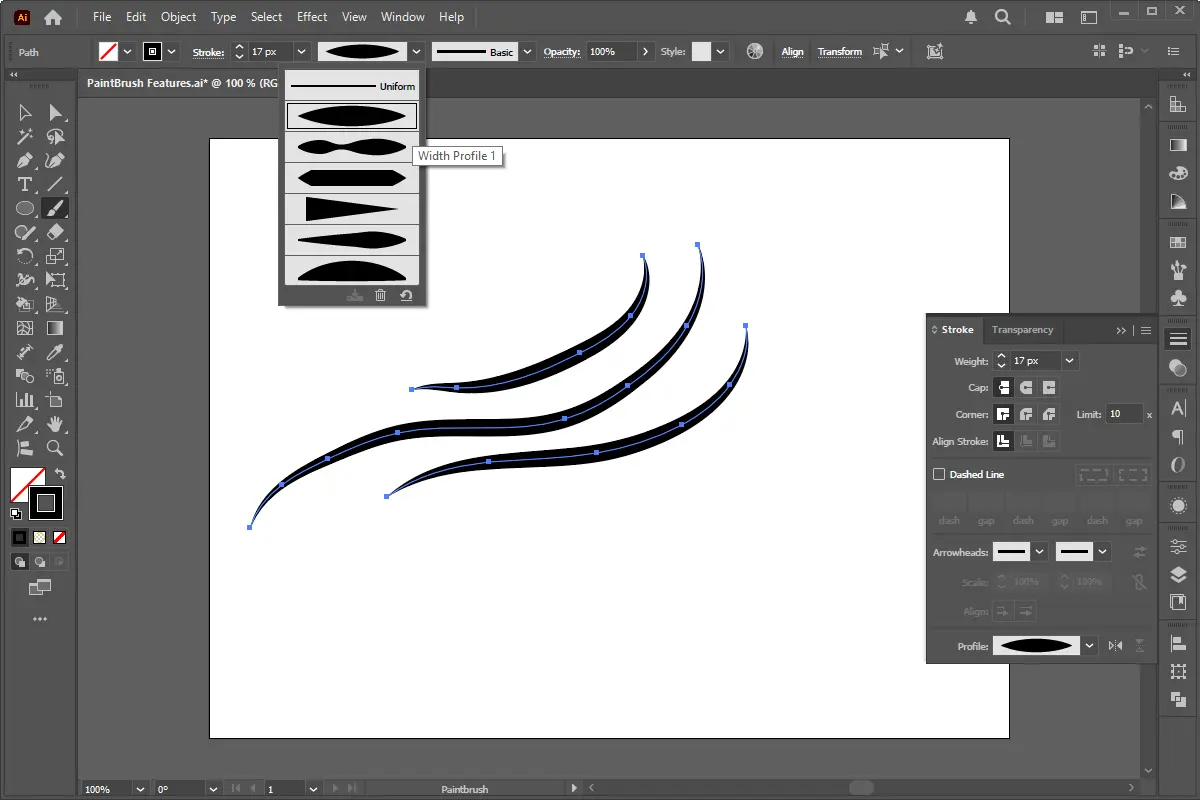
Variable Width Profiles allow you to create dynamic and expressive brush strokes by varying the width of the stroke along its path.
Achieving the best results with brushes in Adobe Illustrator requires a combination of technique and creativity. Here are some tips to help you get the most out of your brush strokes:
The Paintbrush Tool in Adobe Illustrator is a powerful and versatile feature that can significantly enhance your vector artwork. By understanding brush strokes, exploring the brushes library, mastering variable width profile settings, and following the tips provided, you can unlock the full potential of the Paintbrush Tool and create stunning, dynamic artwork.
With this comprehensive tutorial, you now have the knowledge and skills to use the Paintbrush Tool effectively and creatively. Happy designing!
Ajax (Asynchronous JavaScript and XML) is a powerful web development technique used to load data asynchronously without refreshing the webpage. This helps create fast,
In modern web design, CSS pseudo-classes play a vital role in enhancing the user experience by applying styles based on the position, interaction, or relationship of elements
Contact forms are essential elements for any modern website. They not only help your visitors reach out to you directly but also provide a professional touch to your online
In today’s modern web development landscape, delivering interactive and responsive interfaces is key to engaging users. In this tutorial, we’ll build a vertical tab
Transferring a WordPress website to a new domain can be challenging, especially if you want to maintain your SEO rankings. Whether you're rebranding or switching to a better
PHP Output Buffering is an essential feature in PHP Web Development that helps developers manage and manipulate output before sending it to the browser. It allows capturing
Creating visually appealing and professional designs in Adobe Illustrator often hinges on precise alignment. While freehand drawing has its place, achieving pixel-perfect
A responsive navigation menu is essential for ensuring smooth and user-friendly navigation across devices. The way dropdown menus behave on desktop and mobile can

Our online CSS beautifier & minifier is the professional choice for clean code. It offers customizable options for formatting, beautification, and minification. Enhance your CSS for optimal results now!

Our online HTML beautifier is the professional choice for cleaning up code. Compress & format HTML for improved structure and readability, with just a few clicks. Start beautifying today!

Design unique CSS gradients with our easy to use, professional generator. Choose colors and customize with advanced features. Lightweight for fast and optimized output!

Use our powerful sort words tool to arrange text by alphabetical order or character length. Many options available to format the output as desired. Clean up your lists now, quickly and easily!

Professional-grade text encoding and decoding is here with our advanced tool. Sophisticated features and capabilities for all your complex data transformation needs. Start now!

Our lightweight CSS filter generator lets you create CSS filters using hex values with multiple advanced options. Get the perfect look for your elements with this powerful & efficient tool!

Extract email IDs from messy text with a single click using our professional tool. Lightweight & efficient, streamlines the process for you, saving time. Try now for effortless email extraction!

Our online Lorem Ipsum generator provides the best solution for your demo content needs. It offers many options, allowing you to create perfect placeholder text with precision. Get started now!

Our Website Development Service offers custom, responsive design, ensuring seamless user experience across devices. From concept to launch, we create dynamic, SEO-friendly sites to elevate your online presence and drive engagement.

Revamp your online presence with our Website Redesign Service! We specialize in creating modern, user-friendly designs that boost engagement and conversion rates. Transform your site today for a sleek, professional look that stands out.

Transform your PSD designs into pixel-perfect, responsive HTML5 code with our professional PSD to HTML5 conversion service. Enjoy clean, SEO-friendly, and cross-browser compatible code tailored to bring your vision to life seamlessly.

Elevate your brand with our professional Logo Design Service. We create unique, memorable logos that capture your business's essence. Stand out in the market with a custom logo designed to leave a lasting impression.

Boost your site's search engine presence! We offer expert SEO solutions, including image and code enhancements, to achieve top positions on Google, Bing, and Yahoo. Let us drive qualified traffic to your business today!

Boost your brand with our Social Media Marketing Service! We specialize in crafting engaging content, driving growth through targeted ads, and maximizing your online presence. Drive growth and connect with your audience effectively.

Experience our WordPress development services, offering tailored solutions for custom themes, plugins, and seamless integrations. Enhance your online presence with our responsive, secure, and success-optimized WordPress solutions.

Enhance your website's visual appeal: We sharpen icons/images, correct RAW files & repair damaged/distorted/overly bright photos. Expect natural-colored, high-resolution JPEGs, complete with photographic effects & upscaling.

In the age of machine learning and smart algorithms, the lines between human creativity and artificial intelligence are blurring—fast. With tools like ChatGPT, Jasper, and Writesonic popping up everywhere, the content landscape is...

Boost Your SEO Rankings: Master UI Design Optimization for Higher Visibility In the digital age, SEO success isn’t just about keywords and backlinks. Google’s algorithms now prioritize user experience (UX), making your website’s User Interface...

What Are JavaScript Libraries? JavaScript libraries are pre-written collections of code that streamline complex web development tasks. They provide reusable functions, components, and utilities to handle everything from DOM manipulation to 3D rendering,...
In the dynamic world of web development, the visual appeal and user experience of a website are paramount. At the heart of this lies CSS (Cascading Style Sheets), the language that dictates how...
In today's digital landscape, a stunning and functional website is no longer a luxury but a necessity. Whether you're an aspiring web designer, a budding entrepreneur, or a seasoned professional looking to sharpen...
AI is fundamentally reshaping website development, automating tedious tasks, enabling hyper-personalization, and accelerating development cycles, which presents both immense opportunities for those who adapt and significant risks for developers who ignore this technological...

Choosing the right server infrastructure is one of the most critical decisions any business or individual with an online presence will make. Get it right, and you have a stable, performant foundation for...
In the fast-paced world of web development, efficiency and productivity are paramount. For PHP developers, the choice of a code editor can significantly impact their workflow, making the difference between a cumbersome coding...


